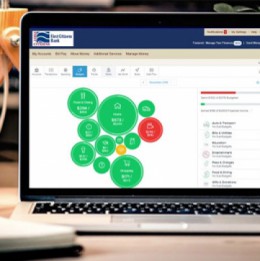
Money Management within online banking can help you create a complete picture of your financial accounts. It’s free, secure, and easy to use.
Watch this video to learn where it is located within Online Banking on a computer and on a cell phone:
As mentioned in the video, most outside accounts can be added including checking and savings accounts, investments, credit cards, loans, mortgages and other lines of credit. You can even customize them for easy identification! Most accounts will automatically update every time you visit the feature in online banking.
Ready to get started? If so, log into your Online Banking account and click on "Money Management" found under "Manage Money" in the top navigation bar. To access Money Management via our mobile app, simply click on the "More" menu.
Click here for a Money Management step-by-step guide on how to add outside accounts.
If you have any questions, simply click the "? in a circle" icon or click the "Request Support" button within Money Management, visit our Money Management FAQ, or call us toll-free during normal business hours at 800-423-1602.
February 3, 2020 by First Citizens Bank
By clicking the links above, you are now leaving First Citizens Bank's website and are going to a website that is not operated by the bank. First Citizens Bank is not responsible for the content; availability of linked sites; does not endorse or guarantee the products, information, or recommendations; and is not liable for any failure of products or services provided by the linked website. Please be advised that First Citizens Bank does not represent either the third party or you, the customer, if you enter into a transaction. Further, the privacy policy of this site owner may be different than that of the bank and this site may provide less security than the bank's website. We encourage you to read the privacy policies of websites reached through the use of links from the First Citizens Bank website.